Welcome to Gaia! ::


Devoted Bookworm

16,250 Points
  • Cats vs Dogs 100
  • Autobiographer 200
  • Beta Forum Regular 0
Gaia Towns Housing Tutorial

(images for this sticky and much information borrowed with permission from B5's sticky Gaia Towns Instructions. For information on how to catch bugs and other, less housing related issues, please go there.)

Important Information:
Quote:
Towns just got revamped, so there may be some bugs in it. Please, if towns is not working for you, consider the fact that it might be a new system bugging out due to older stuff and clear your cache.


Quote:
The sticky has finally been redone! Changes are pretty minimal, a few things are new to Towns, a few things, like reservations no longer seem to function.

I am in no way perfect. Please, if you see something I've missed let me know and I'll correct it. Thankyou!

~terradi


Directory:
Post One: You are Here
Post Two: Basic Access Information and Troubleshooting
Post Three: Getting a Home
Post Four: Navigating and Finding a Blank Spot
Post Five: Vacant Spots and Why You May Not Be Able To Move In
Reservations & Misc
Post Six: Paper, Bugs, Flowers
Post Seven: Other, Towns Related Issues

Devoted Bookworm

16,250 Points
  • Cats vs Dogs 100
  • Autobiographer 200
  • Beta Forum Regular 0
Getting Started

In order to play Gaia Towns, you must have Flash player 7 or later installed. Download the latest Flash player at macromedia.com. For optimal performance, it is highly recommended that you install Flash Player 8.

Troubleshooting

All users can or potentially should be able to access towns. Some users get a towns screen that never seems to load, why that is we're not quite sure.

If you cannot get anything at all to load, please scroll straight to the bottom link for towns information. Chances are pretty good that if you've never been in towns before or never gotten it to work at your current computer you need to download Flash player. A link to that, as well as more detailed instructions on how Towns in general works is there.

Quick Browser Clearing Steps
Firefox:
tools>options>privacy>cache>clear

Internet Explorer:
tools>internet options>temporary internet files>delete all offline content

Internet Explorer v6.0 (and up)
tools->internet options->delete files


Also, for a step-by step, picture guide on how to clear cache, please use the following link:
How to clear your cache, a complete guide (covers Internet Explorer, Firefox, Safari (apple) and AOl (text only).

Devoted Bookworm

16,250 Points
  • Cats vs Dogs 100
  • Autobiographer 200
  • Beta Forum Regular 0
Getting a Home
Getting Started

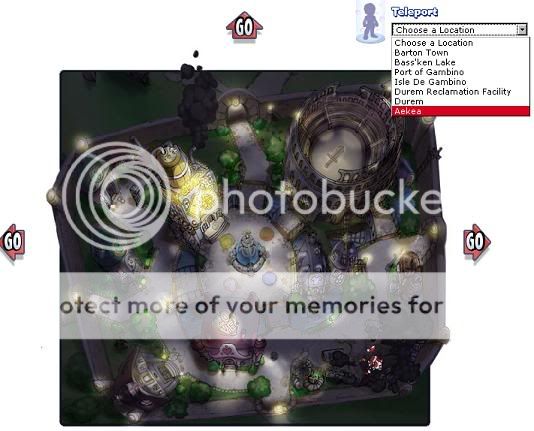
To have a house in towns, first you need to have a house. Several users have pm'ed me saying that they were unable to get a permit because they did not have a house yet. To get a house, go to "map" then Aekea.

To get to Aekea click on the map, then either click 'teleport' and go to Aekea, as seen below, or click the right arrow several times until you come to it.

User Image

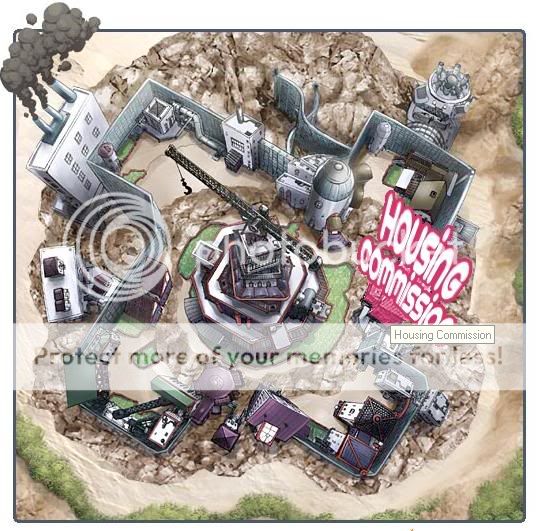
The Housing Commission, which is near the center of town is where you pick up all things related to getting or altering your home. It looks like this:


User Image


Josie will be waiting for you, and you'll have an option to select which style of house you want if you don't have one yet. You'll see an option there to select your particular style of house. They are zero gold to purchase, and you get to choose one of several styles. After you have a house you can buy items at the Faktori to decorate your house with, then move on into towns.

For further information and guidance on homes, please go to the Gaia Homes Subforum. Specifically, the Gaia Homes FAQ will be of great use to you.

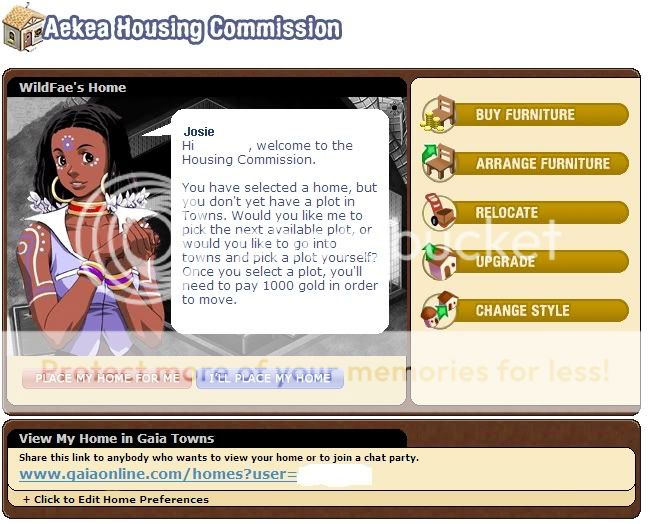
If you've already got a home, Josie will be waiting for you with a bunch of options. Your screen will look like this:

User Image


If you choose to let Josie place your home for you, she'll find you a spot and you'll get a link to it immediately.

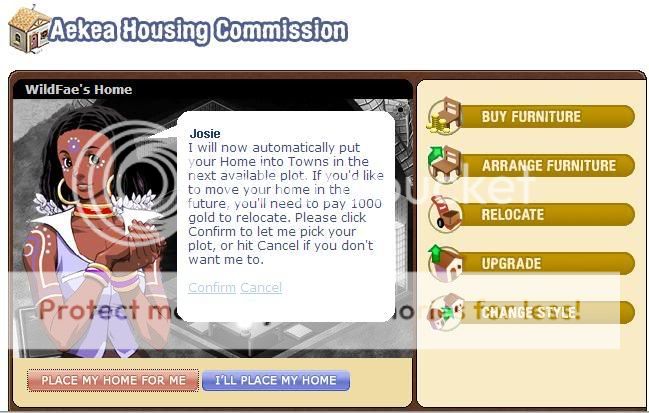
If you click this option, your next screen will look like this:

User Image


Clicking okay will set you in towns and you'll get a link to where your new home is.

Of course, if you want to move in near friends (if there's space) or just move somewhere of your own choosing, you can do that as well.

Devoted Bookworm

16,250 Points
  • Cats vs Dogs 100
  • Autobiographer 200
  • Beta Forum Regular 0
Navigating and Finding a Blank Spot

Now comes the tricky part. To move in, you need to find yourself a blank spot. Now, this isn't quite as easy as it seems. (See below for some reasonings on why that is). When you find a place that has a 'vacant' or 'reserved' marker, you can move in!

No More Vacant Lots
At the time this sticky is being revamped, there should always be vacant lots available! If there's not then something's a little glitchy. Hang on and hold out hope!

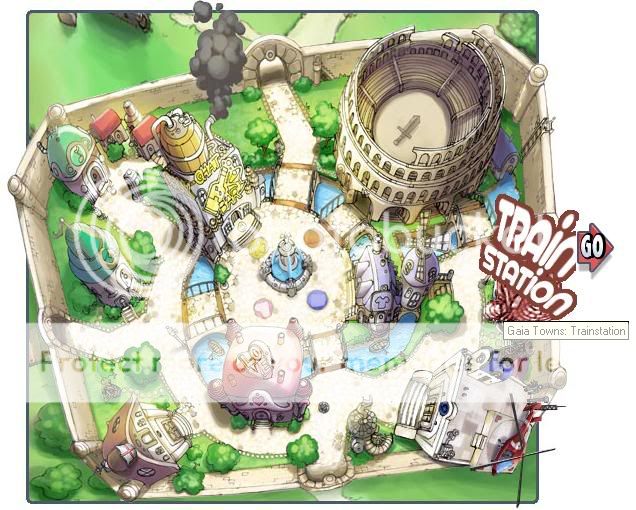
Trainstation

The Trainstation is the entry point to Gaia Towns. The trainstation is where you can learn about how to use Gaia Towns Interface. Talk to any of the NPCs to find out more about specific actions or click on Navigate to start exploring the neighborhoods.

Trainstation

User Image

Navigate
Displays the world map of Towns and allows you to quick jump to any locations.

Navigate

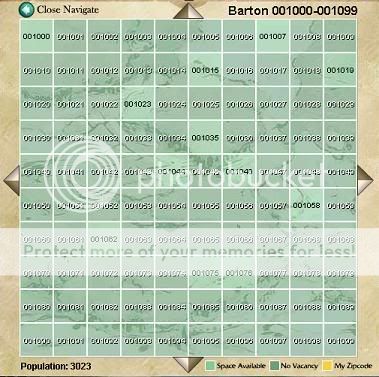
World Map
User Image


World View
(Shown above) Displays a grid of 100 suburbs that make up one town map.

Close Navigate
Closes Navigate panel.

Zip Code
Shows the current town map zip code.

Next Town
Navigate to the next adjacent town map. The navigation arrow grays out if there are no more adjacent maps.
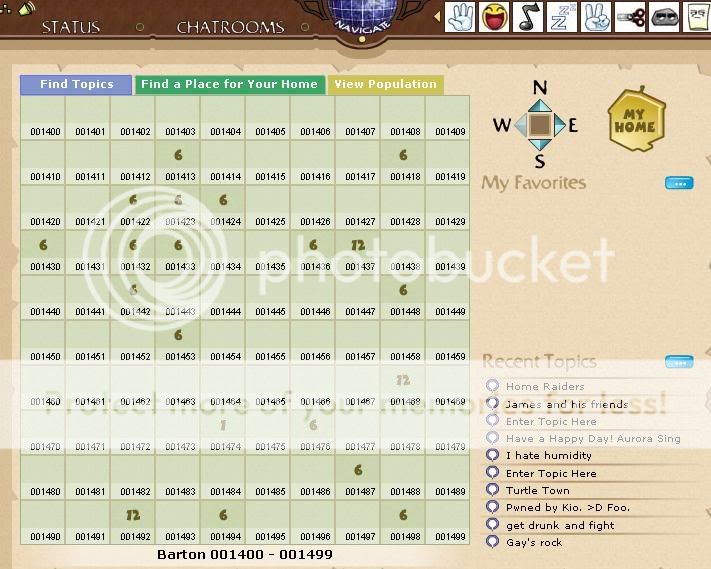
User Image

Find a Place for Your Home
(Shown Above) This green panel shows all areas, and, specifically, which areas have either vacant or reserved spaces in them. If you don't see a number, there are no spaces.

View Population
(Not shown) Shows the current population of established residents on the current town map.

Suburb Map
User Image


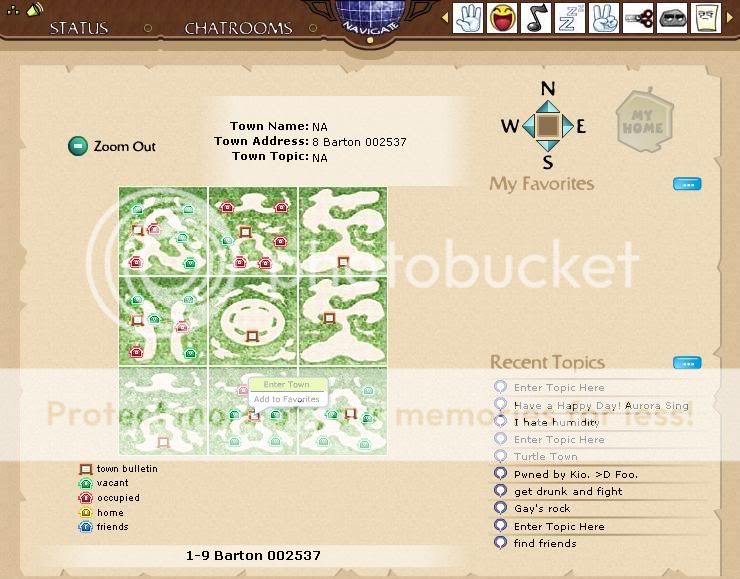
Suburb View
Displays a grid of 9 neighborhoods that share the same zip code. To get to this from the world view, click one of the sign markers and choose the option 'enter town'.

World Map
Change to World Map view.

Next Suburb
Use the directional arrows to navigate to the next adjacent suburb.

Legend
(See above Town map to see these)

My Home - The location of my home.
My Friend- The locations of my friends.
Vacant - Home plots that are available to move into.
Occupied - Homes that are established.

How to Navigate

To enter a neighborhood, click on a town from the World Map view. From there you will notice town signs in each of the topics. Clicking on these will give you the option to either enter the town or add it to your favorites. You wish to enter the town, of course.

From here you will be in the walk-around mode and be able to see your avatar and explore the town area.

Devoted Bookworm

16,250 Points
  • Cats vs Dogs 100
  • Autobiographer 200
  • Beta Forum Regular 0
Vacant Spots: Why You May Not Be Able To Move In

Please read before pm'ing anyone to ask why you cannot move in!
A Vacant Spot is not always a spot you can move into.


Vacant spots come in three varieties as shown below. I'll go from the one that will be most useful to you to the one that is least likely to be of use.

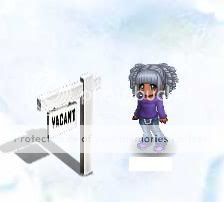
Vacant
User Image

A spot like this is not reserved and any user can claim it. If you see one and you walk up to it, you will see a 'move in' screen, as shown above. If you choose to move in your house will pop up and you will be able to live there.

Reserved by a Friend
User Image
Similar to Vacant sign, but this sign only shows up when you or your friend has reserved a plot for you. It looks the same as the vacant sign, except that it says 'Reserved' instead of 'Vacant'.

A spot like this can be claimed by anyone who is friends with the person who has reserved the lot. To move in, walk up to it and click and the 'move in' screen will show up, just as it did with the vacant one.

These spots may be available to you. There is no way for anyone to tell but yourself, or your friends if they know they have reserved lots.

Reserved by a Non-Friend
(This feature no longer exists. As it may come back in the future, the post and information on it is being preserved.)


User Image
As you can see, (much to my mule's despair) there is no sign up. As the person who reserved the spot is not your friend, you cannot move into this space.

Devoted Bookworm

16,250 Points
  • Cats vs Dogs 100
  • Autobiographer 200
  • Beta Forum Regular 0
Moving Out

If you decide that you do not want to live somewhere, you can move out for 2000 gold. Simply go to Aekea and click that option.


Reservations

At current time Reservations are no longer available. That being said, the following information is preserved for future reference, should reservations become available again.

Note: If no reservations are available, you will get the following message:
Quote:
Josie: There are no free neighborhoods to reserve. Sorry about that.


There are a lot of reserved spaces, which makes finding a house right now a bit difficult. Here is how they work:

For 1000 gold at Aekea, a gaian can reserve a block of six houses for themselves and anyone on their friendslist. This reservation lasts for 24 hours. At the time this sticky is being written there is no more space for reservations. If you reserved an area there will be a pm in your inbox telling you what location you have reserved. Keep this pm as it tells you which block you can go to to find your house!

If you have reserved an area when you go to it you will see signs with the word 'reserved' on them. This means that you can move into this area. Also, if you are a friend of someone who has reserved an area, you will see this option.

Additional note: if you move in, the reserved signs will disappear for you. They will still be visible to all of your friends however.

If you go into a reserved area of someone you do not know, you will see a blank area. No signs, no houses, or houses where people have built them but no spaces that you can build in.

To allow someone to move into your reserved area, add them to your friendslist!

Devoted Bookworm

16,250 Points
  • Cats vs Dogs 100
  • Autobiographer 200
  • Beta Forum Regular 0
Paper, Bugs, Flowers

Bugs, flowers and paper can all be purchsed and sold via the marketplace for varying prices and values. To get an idea of how much they sell for, when they are found, and how many there are, please check out one of the various guides located in this forum.

Bugs can be traded for ink at Moira's shop in Durem
Paper can be traded in for hats at Ruby and Peyo's store in the Isle de Gambino (The Hat Store)
Flowers can be traded in for boquets at Rina's store.

Ink is used to dye the flower wrapper and ribbon on boquets.

For full descriptions, poses and further information on how this works please go to one of the guides located in this forum. 3nodding

Devoted Bookworm

16,250 Points
  • Cats vs Dogs 100
  • Autobiographer 200
  • Beta Forum Regular 0
Other, Towns-Related Issues:

Technical Issues of All Sorts:
If you have a problem where navigation is loading improperly, or in general where something is not loading properly, please double and triple-check that your cache is cleared and that you have the latest version of Flash.

Go to Macromedia.com to check if you have the correct version of flash and check out this complete guide for information on how to clear out your cache.

Affirmed: The following error has been tested and affirmed by users to be fixed by clearing cache or installing the newer version of Flash.
    navigation error - window will not drop down (clear cache)


Screen Resolution issues
Screenshots and guide provided courtesy of Boxed Lunch:

If you are having trouble fitting the towns/Casino/Fishing screen in your screen changing the screen resolution may help. Below is one way how to. It won't work for all computers but for those using most, if not all versions of windows, this should work.

----------------------------
If you are having trouble fitting the town screen in your screen I would suggest changing the screen resolution, below is a way to.
----------------------------

User Image
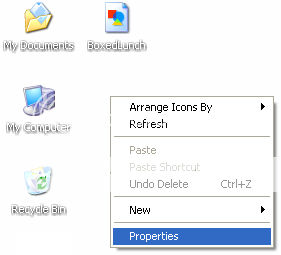
First go to your desktop and right click, make sure you are not clicking on any icon. Select "Properties"

User Image
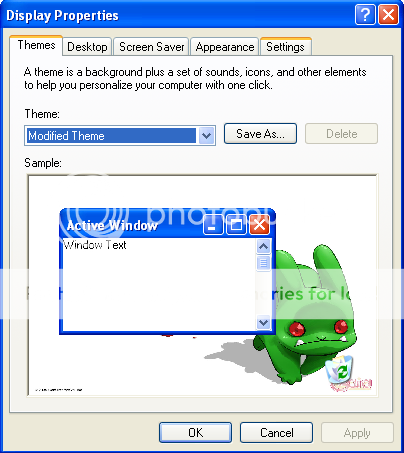
Next press the "settings" tab on the top right.

User Image
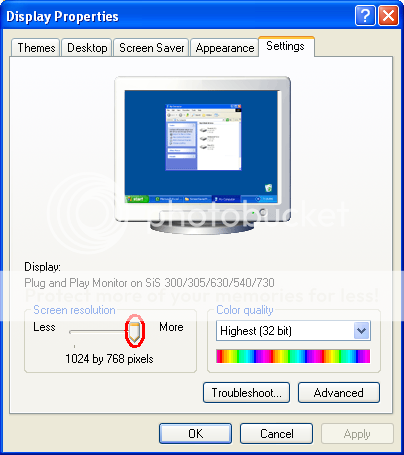
Near the bottom left you will see a button. move it to around 1024 x 768 and press "OK". Your computer will take time to load the new resolution and will then ask if you want to keep the new settings. Say "yes" and it will be done.


Further Feedback and Pressing Issues:

If you have something that you feel needs to be said or a concern you need addressed, please contact a forum moderator. Please feel free to contact someone else if you see them online in order to ensure a quicker response and that issue is dealt with quickly. Honestly I won't mind.

Quick Reply

Submit
Manage Your Items
Other Stuff
Get GCash
Offers
Get Items
More Items
Where Everyone Hangs Out
Other Community Areas
Virtual Spaces
Fun Stuff
Gaia's Games
Mini-Games
Play with GCash
Play with Platinum