


~ a guide by winter.fantasy
Introduction
Are there keyboard shortcuts that just don’t make any sense and you find it impossible to remember? Do you want to find out how to change them? Want to know how just for the heck of it? Or maybe you just want to know all the shortcuts Photoshop has available. If any of these apply to you, read on~
Opening the Keyboard Shortcuts and Menus window
Start modifying by going:
Edit > Keyboard Shortcuts...
Or alternatively, by pressing:
Ctrl + Alt + Shift + K
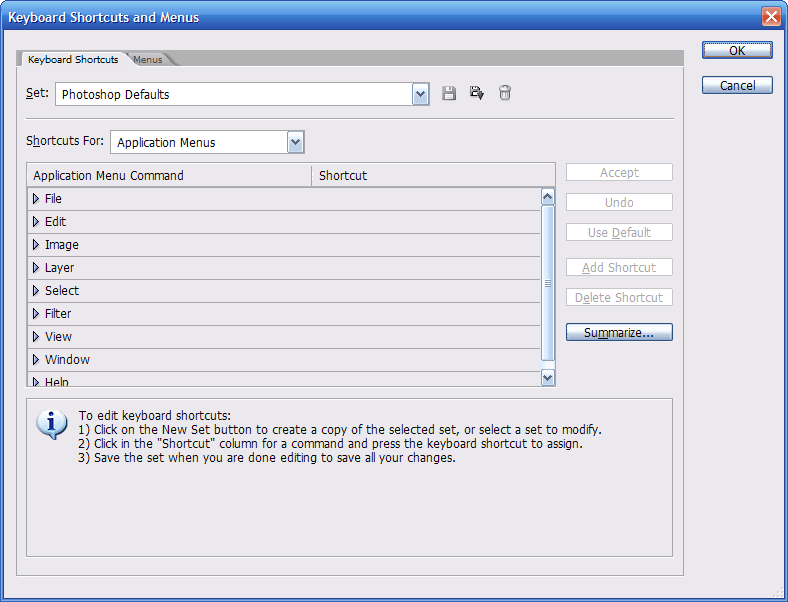
This will bring up a window that looks like this:
Viewing your current shortcuts
You can view your current shortcuts by clicking on the Summerize... button. Alternatively, you can press:
Alt + M
Something like this will then pop up:
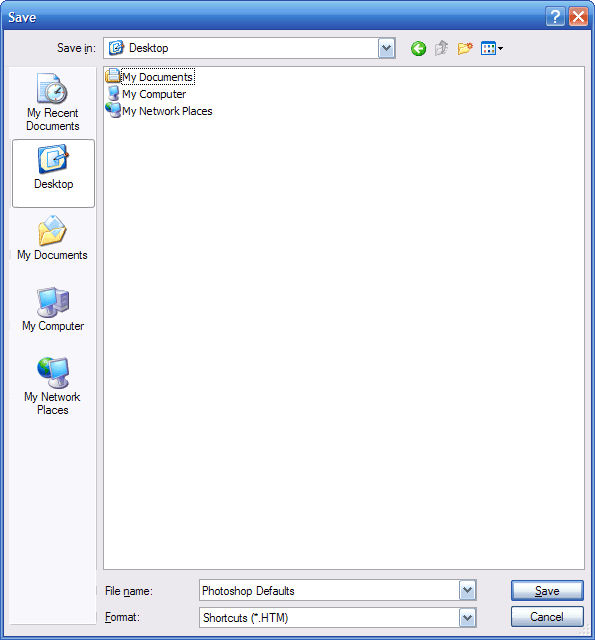
Proceed to save in your desired location, and a list of your current shortcuts will open in your internet browser.
Modifying your shortcuts
Now that you’ve seen your shortcuts, let’s try modifying one now =) Open the Keyboard Shortcuts and Menus window again. Now click the arrow to expand any menu, and then click in the Shortcut column. The current shortcut (or lack of) will be highlighted like so:
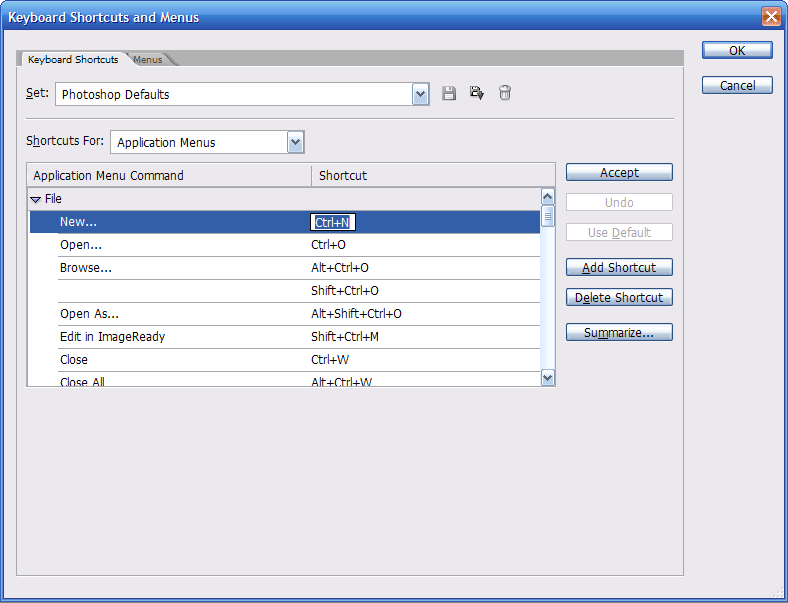
Now proceed to type your new shortcut, make sure it doesn’t coincide with any other available shortcut. You can check by doing a quick Ctrl + F on the list of current shortcuts. Otherwise, you will be notified at the bottom of the window that you have conflicting shortcuts. When you input a new shortcut, you type it in as if you are using said shortcut. Ex. You want to change the shortcut for New... from Ctrl + N to Ctrl + ,. You don’t type each individual letter of Ctrl + ,. You press the Ctrl button with the comma button. When done, click okay.
Changing shortcuts to other stuff
You can also change the shortcuts to tools and palette menus by using the dropdown menu like so:
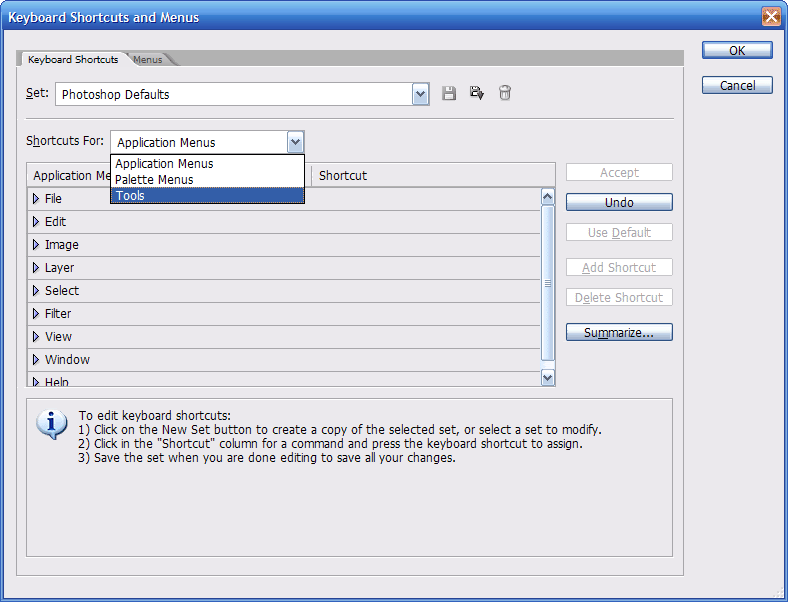
Then proceed to do as before.