|
|
|
|
|
|
|
|
|
 Posted: Mon Mar 22, 2010 3:07 am Posted: Mon Mar 22, 2010 3:07 am
|
|
|
|
|
|
|
|
|
|
Posted: Mon Mar 22, 2010 3:12 am
ιηţŕø∂υcţøηEveryone hears about taking a screen shot & posting it as prove of whatever.
Rather it's in contests or booty bumping.
A screen shot is basically taking a picture of what you are currently seeing on your computer screen.
In this guide we will walk you from taking the screen shot to editing and then pasting/posting it onto a forum.
There will be pictures, screen shots and links to others tutorial.
|
 |
|
|
|
|
|
|
|
|
|
|
|
|
|
|
|
|
Posted: Mon Mar 22, 2010 3:13 am
scŕεεη sħøţ Screen shots are easy to take.
Make sure that what you want to take a shot off is in the forefront of your screen.
In other words...make sure that you are looking at what you want a screen shot of.
Then all you have to do is hold & press the Print Screen key on your computer for 2 seconds.
This sends your image to your clipboard.
On a typical keyboard the print screen button can be found above your Insert key.
(See the pink arrow on the diagram below)
For further knowledge on key function please see the following tutorial:
http://www.seoconsultants.com/windows/keyboard/ 
|
|
|
|
|
|
|
|
|
|
|
|
|
|
|
Posted: Mon Mar 22, 2010 3:14 am
ραsţîηg Once you have taken the screen shot you need to paste it somewhere.
An image editing program like Paint is the easiest way to go.
Go to:
All Programs ~ Accessories ~ Paint
Click on it to open. This is what you will see: This is what you will see: Once your program is open you need to past your screen shot from your clipboard. Once your program is open you need to past your screen shot from your clipboard.
Hit the keys "Ctrl" & "V" simultaneously.
See orange arrows on the key board diagram above.
Please note:
Once you have pasted your screen shot onto any program it will no longer be available in your clipboard.
So if you make a mistake you must retake the screen shot again.
|
|
|
|
|
|
|
|
|
|
|
|
|
|
|
|
|
|
Posted: Mon Mar 22, 2010 3:15 am
|
|
|
|
|
|
|
|
|
|
Posted: Mon Mar 22, 2010 3:16 am
ρħøţøbυckεţThere are other website for image hosting.
Please feel free to use the one you have an account with.
However for the sake of this guide we will be using Photobucket because that's who i have an account with.
Get your own account at the following:
http://photobucket.com/
In order to use an image on websites, blogs, etc you need to either have a bbc code or an url.
Photobucket gives you the ability to download and edit all your images for future posting.
For an in depth tutorial on uploading see the following:
http://tutorials.photobucket.com/ Uploading to your Photobucket AccountUpload your screen shot from the folder that you saved it in. It will look like this: It will look like this: As you can see there is still allot of space surrounding the image. As you can see there is still allot of space surrounding the image.
Now we will crop/cut further in Photobucket.
|
|
|
|
|
|
|
|
|
|
|
|
|
|
|
|
|
|
Posted: Mon Mar 22, 2010 3:18 am
ε∂îţîηg îη ρħøţøbυckεţThe image still has too much space surrounding it.
Photobucket allows for further cropping, sizing, decorating, etc.
For the purpose of this guide we will be cropping only.
Each photo/image has their own option of moving, sharing, editing, etc.
We are choosing "Edit" Once the editing window opens up. Once the editing window opens up.
We are going to choose "Crop"
You can crop your image just like you did in Paint.
By left clicking on a starting point and dragging the mouse out & down.
In order for Photobucket to recognize the cropping area your start point must be well within the image.
If you make a mistake, simply click on the cancel button and it takes you back to the editing window. Once you have your area selected for cropping you will see the image surrounded by dashes. Once you have your area selected for cropping you will see the image surrounded by dashes.
Just like in paint.
You will also see the lil squares that will allow you to adjust the area for cropping.
Simply clicking on the lil square and move it in & out.
Once you are done selecting the image/area for cropping.
Click on the "Crop Selected Area" button.
Reminder:
Sometimes it won't allow you to click the "Crop Selected Area" button.
Please remember that you can achieve the same by right clicking the mouse.
And choosing "Crop Selected Area". This should crop and adjust your image in the screen. This should crop and adjust your image in the screen.
Now it's time to save.
Simply scroll down a bit and choose "Save A Copy" DO NOT REPLACE THE IMAGE DO NOT REPLACE THE IMAGE
Just in case later you realized you made a mistake or need to crop or make further changes.
The old adage of a copy of a copy of a copy applies here to.
The more you copy a copy of an image the blurrier it gets.
|
|
|
|
|
|
|
|
|
|
|
|
|
|
|
Posted: Mon Mar 22, 2010 3:18 am
ρøsţîηg yøυŕ îmαgεNow you are ready to post that screen shot.
From Photobucket ~ go to the image you wish to post.
When you pass your mouse over the image an extra box opens at the bottom with additional information.
In this box you can see the name of the image and several link/url options. In order to see an image on Gaia you need the following bbc code [img.][/img.] with out the periods In order to see an image on Gaia you need the following bbc code [img.][/img.] with out the periods
Photobucket provides the link to the image all ready to go.
Just click & copy the "IMG Code" (last code/red arrow on above image)
Then click & paste to your post.
Fix, add color or add text as you like, below, above or on either side then submit. Photobucket also provides you with the direct link if & when at a later date you want to download the image elsewhere. Photobucket also provides you with the direct link if & when at a later date you want to download the image elsewhere.
(pink arrow on above image)
|
|
|
|
|
|
|
|
|
|
|
|
|
|
|
|
|
|
Posted: Mon Mar 22, 2010 3:20 am
Booty grab screen shot.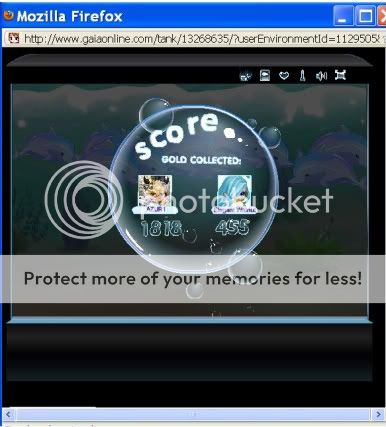 Reminder: Reminder:
The score on booty grab doesn't last very long.
So you must be quick to press the Print Screen key to snap the shot.
Once done you can take your sweet time opening paint & pasting.
DISCLAIMER:
I am not an expert, programmer nor developer.
All information provided in this guide is correct to the best of my knowledge.
I am not responsible for external links.
This guide is a result of my personal experience only.
|
|
|
|
|
|
|
|
|
|
|
|
|
|
|
Posted: Mon Apr 25, 2011 12:33 am
can you post how to take a screen shot on a mac? thanks! c. heart heart heart
|
|
|
|
|
|
|
|
|
|
|
|
|
|
|
|
|
|
|